Getting started
Cuevera doesn't require an account or an internet connection — everything lives in a local library on your device. The fastest way to get going is to import songs you already have (OnSong files, ChordPro files, or stem ZIPs), or add a song from scratch on the Songs page and write its lyrics and chords yourself.
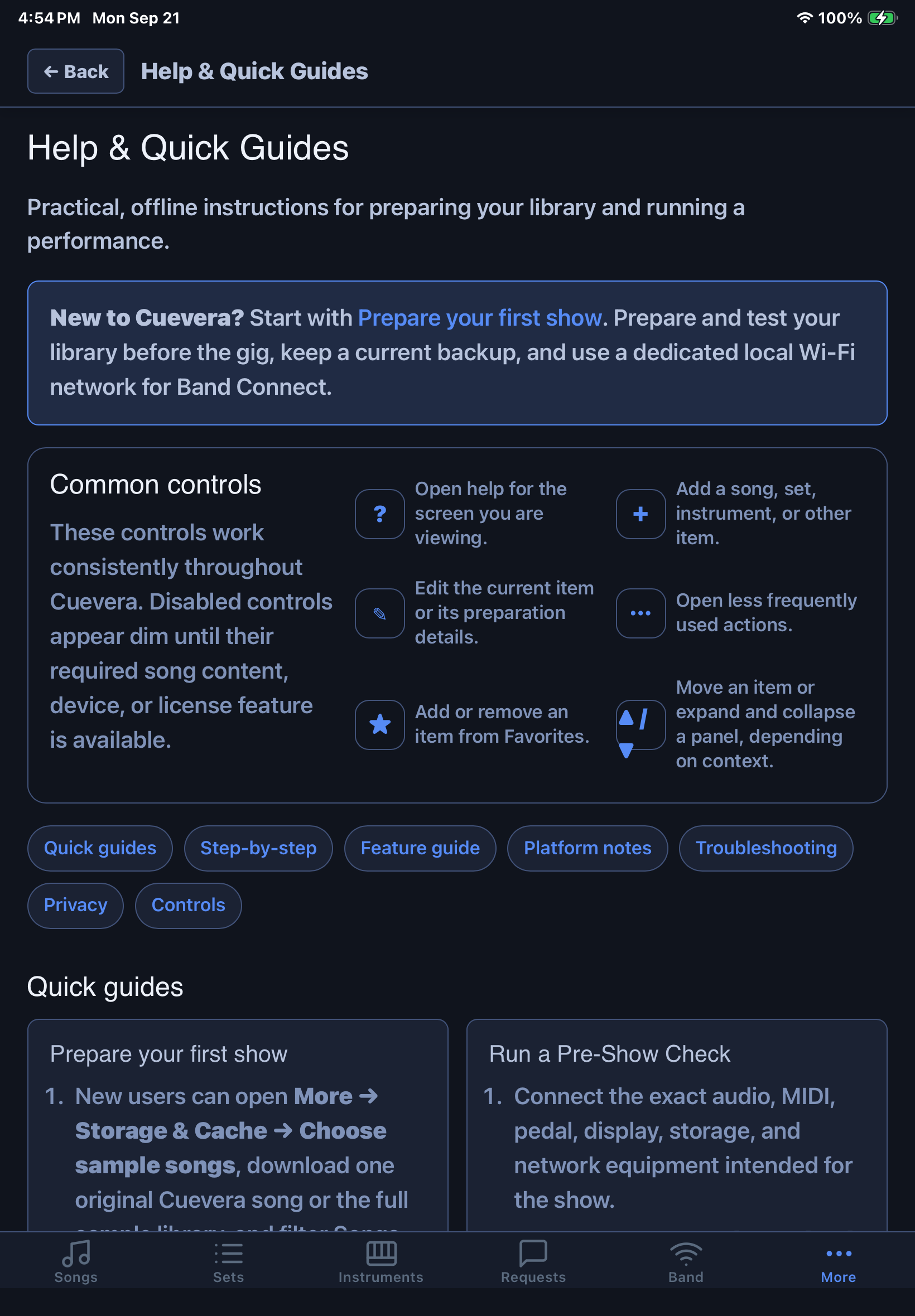
The app is organized around a left sidebar (desktop) or bottom tab bar (phone/tablet): Songs, Sets, Instruments, Requests, Band Connect, and More, which contains Display, MIDI, Pedal, Tracks, Reference Music Service, Import, License, Theme, and Help. Backup & Sync is available where the platform supports it.
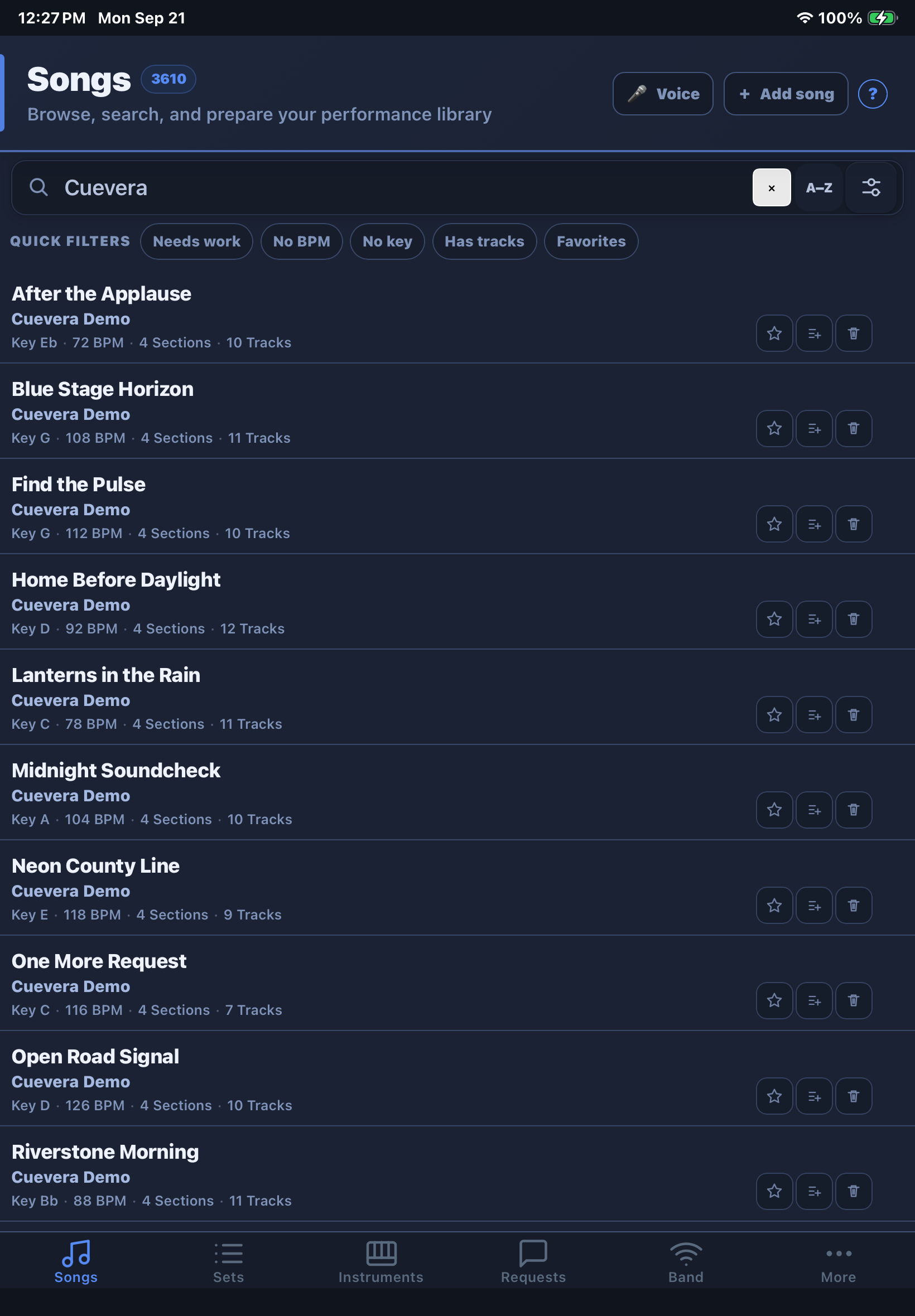
Song library
The Songs page is a full-width library browser with search, grouping, favorites, readiness indicators, set actions, and delete controls. Select a row to open Song View, where its title, artist, key, time signature, BPM, genre, status, lyrics, charts, sections, audio, and MIDI can be reviewed or edited.
- Title, Artist, Genre — Genre has an Auto button that looks the song up online to fill it in.
- Key — has an Auto button that detects the key directly from the song's backing track.
- BPM and performance notes.
- Sections — Intro, Verse, Chorus, Bridge, and so on, each with its own color tag (Harmony / Solo / Bridge / Tag) used to highlight it in the performance view.
- Song Start MIDI — a Program Change / Control Change command that fires automatically the moment you open the song, tied to a saved patch from your Instruments library or a manual device/channel/program number.
Use the search field to find a title or artist. Song editing occurs in Song View rather than in a separate right-side detail pane.
On touch devices, swipe a song row to reveal Delete. Deletion requires confirmation so an accidental swipe cannot immediately remove a song.
Editing lyrics & chords
The lyrics editor uses the same header and layout as the performance view itself, so what you're editing looks like what you'll see live. It uses simple inline chord notation:
- A line ending with a colon is treated as a section header (e.g.
Chorus:). - Chords go directly before the syllable they belong to:
[G]Amazing [D]grace. - Chord-only lines (intros, turnarounds) are written as bracketed chords with no lyric text:
[F][C] [F][Am].
You can load and play the song's backing track from the editor while you work, so you can check chord placement against Reference audio or assigned performance Tracks.
Prepare Song
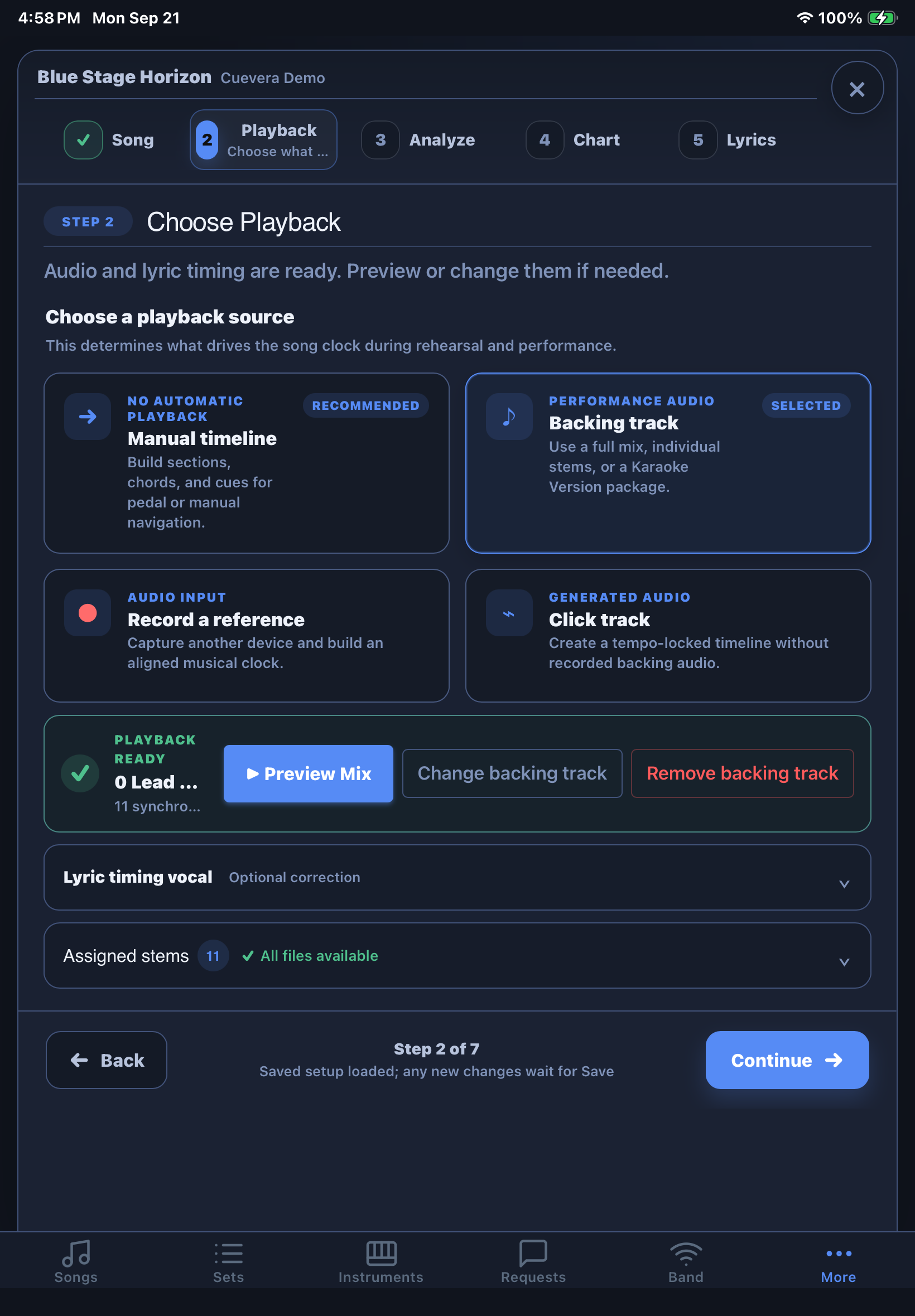
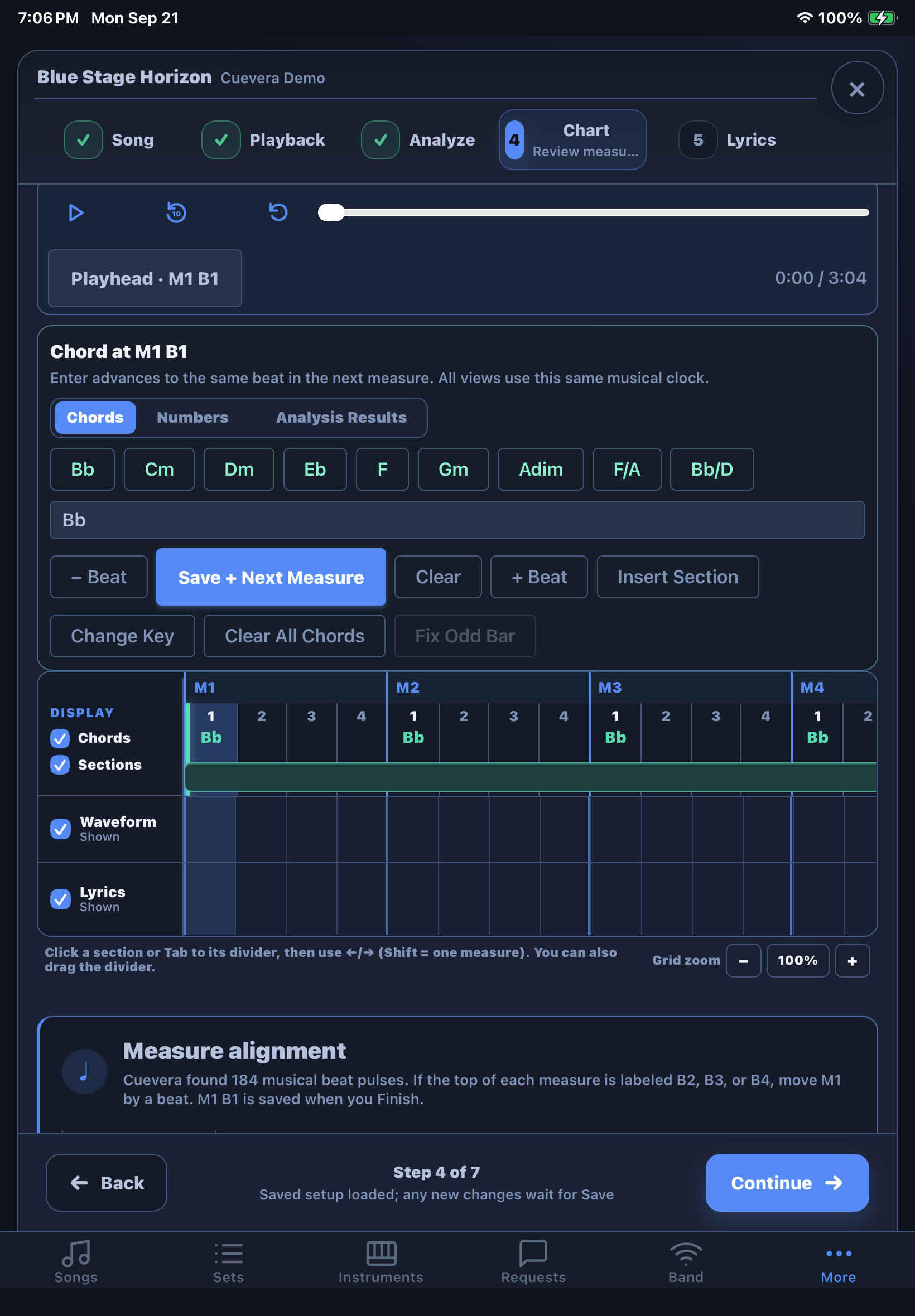
Select Edit from Song View to use the guided workflow: Details, Playback, Analyze, Chords & Timing, Lyrics, Cues, and Finish.
- Playback chooses a manual timeline, backing track, recorded reference, or generated click track.
- Analyze can build a beat grid, transcription, and draft chart from selected local audio.
- Chords & Timing reviews sections, words, chords, measures, and beats on one shared timeline.
- Cues places MIDI, lighting, mix, PDF, instrument, drum, Text Cue, Recorded Cue, and display actions at a measure and beat.
- Finish reviews and saves the approved setup; preparation remains a recoverable local draft until then.
Preview the complete mix and selected vocal timing source before analysis. Automated results are a starting point, not a substitute for rehearsal.
Performance view
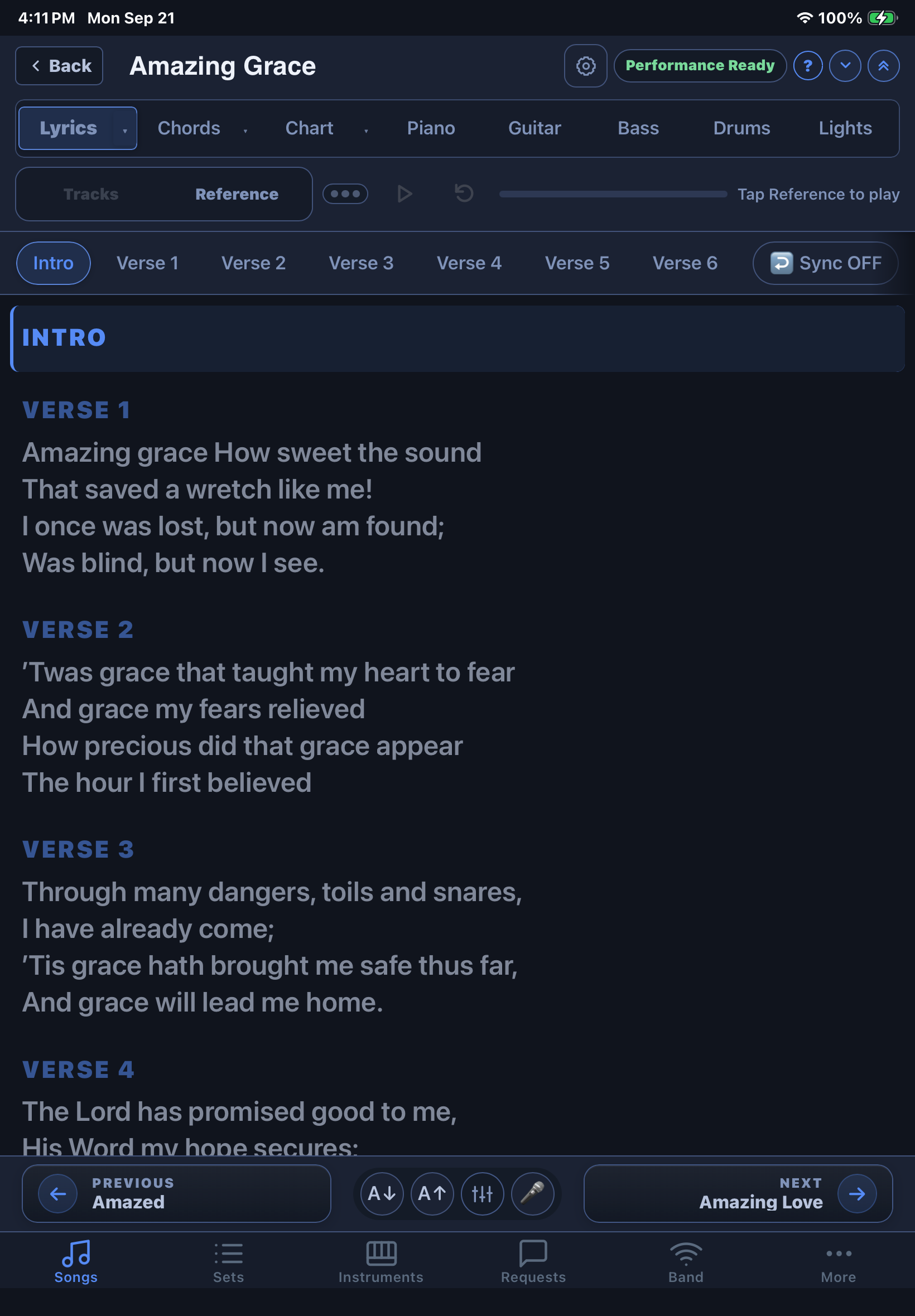
This is the screen you run during a gig: full-screen lyrics and chords, with the current section highlighted as a solid block so you always know where you are. The header shows the song title, artist, key, and BPM together on one line, with the same controls whether you're on desktop or tablet.
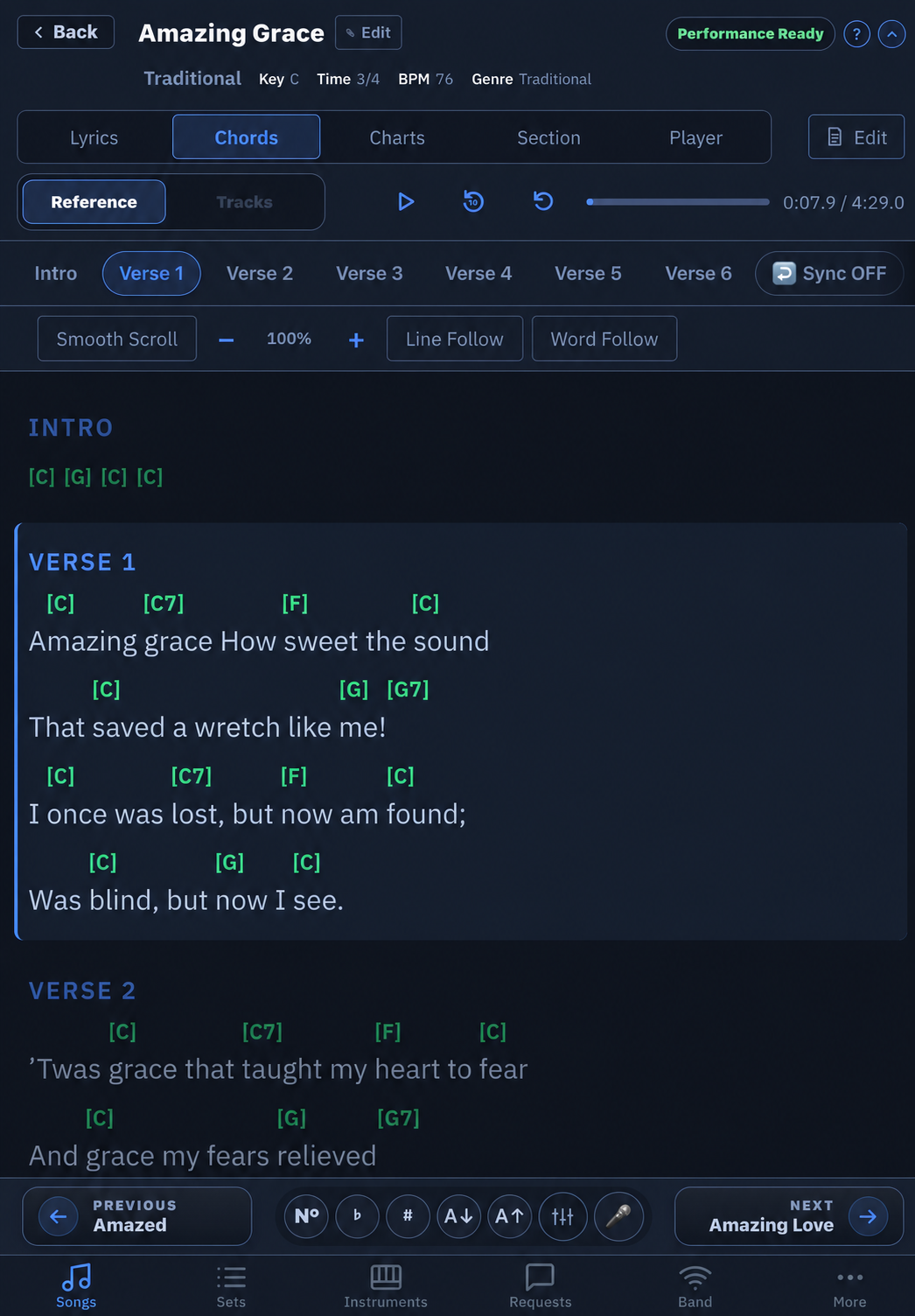
- Nashville Style — shows a measure-only roadmap in four-measure phrases while keeping the active phrase and section heading visible during playback.
- Section bar — tap any section to jump straight to it. Sync mode queues the tap instead, so it takes effect cleanly at the end of the current section rather than cutting it off.
- Transpose — shift the displayed key up or down without touching the saved song, with a one-tap Reset back to the original.
- Track mixer — mute, solo, level, and route individual Tracks such as click, vocals, or guitar.
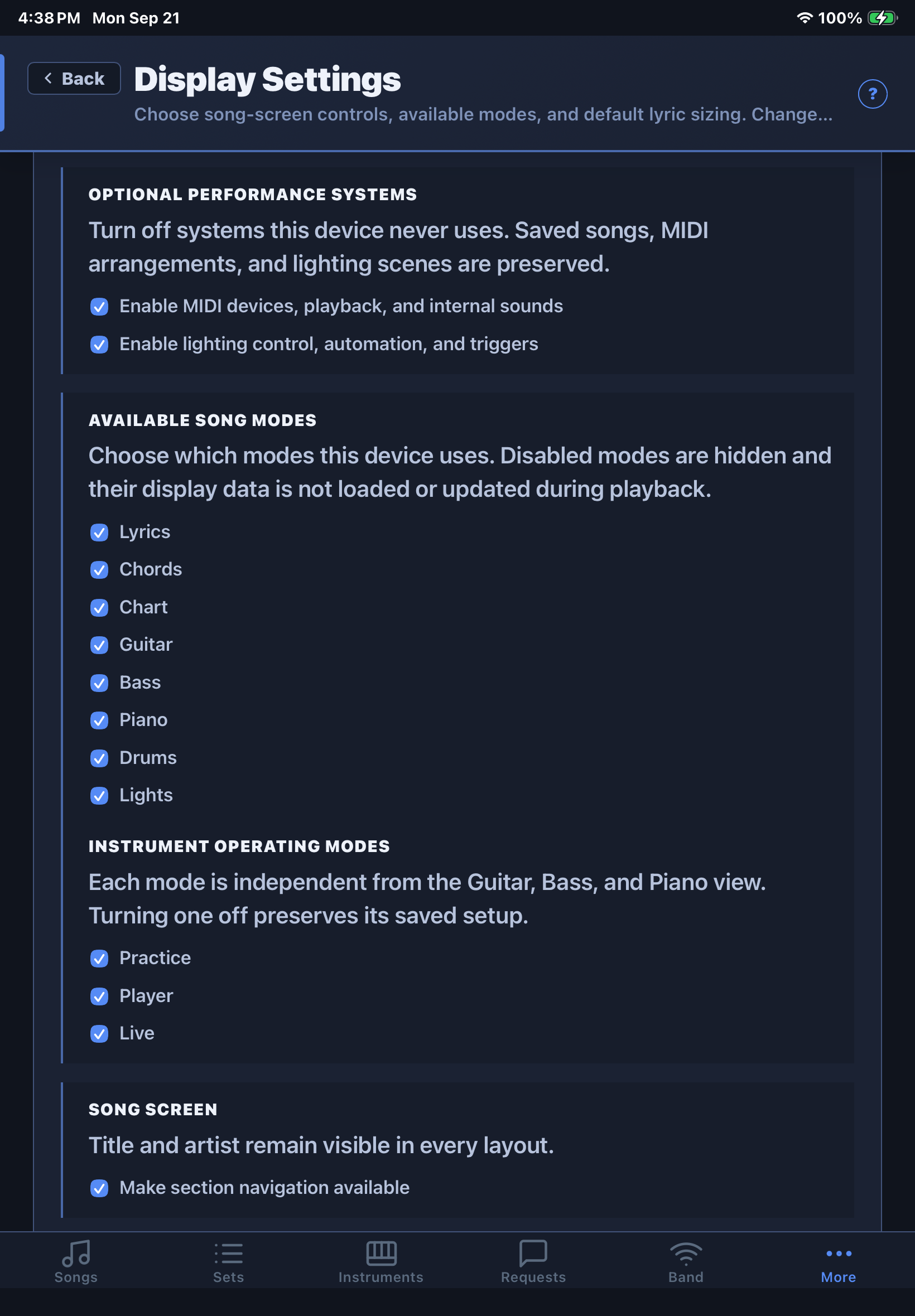
- Instrument views — use independent Guitar, Bass, Piano, and Drums views when enabled in Display Settings.
- Continuous playback — changing song views does not surrender the master song clock or restart the Track.
- Auto-scroll — the current line is highlighted as the track plays, and the view follows along automatically.
- Tap zones on the far left/right edges jump to the previous/next song in the current set.
- ⧉ Lyrics Display opens a second, lyrics-only window — handy for a stage monitor or a second screen the rest of the band can see.
- 🎤 Voice command starts or stops push-to-talk song selection. Say a song title and Cuevera opens the best local-library match; if the result is ambiguous, choose from the suggested songs.
Song timeline & performance cues
Cuevera gives the song one musical clock measured in measures and beats. Sections, lyric and chart cues, beat-level key changes, MIDI commands and segments, lighting scenes, mix changes, guitar/bass/piano parts, drum clips, Text Cues, and Recorded Cues can all point to that same timeline instead of maintaining unrelated timers.
- Prepare or review the song's BPM, time signature, downbeat, and measure grid.
- Open an enabled performance or editing view and use the Song timeline cue lane.
- Select Song Load or a measure/beat, then add or review the cue for that location.
- Rehearse normal playback, seeking, section jumps, and starting in the middle of the song.
Song PDFs and Chart PDFs are kept separate so sheet music and other documents do not clutter the Chart menu. Add automatic PDF page turns at exact measures and beats; disable automatic page cues from the PDF toolbar whenever you want to turn pages manually.
Text Cues show a saved message locally and on authenticated Band Connect followers, optionally limited to selected member IDs. Recorded Cues play a short local audio prompt at the saved measure and beat. Rehearse their timing, recipients, level, and routing.
Drum machine
The Drums view follows the shared song clock and offers three working views:
- Kit — tap the pictured kit pieces to audition sounds.
- Pads — audition the complete General MIDI drum set by name and note.
- Pattern — create, duplicate, rename, delete, or import a MIDI pattern; set steps and accents; preview it at the song tempo; then place it at the selected measure/beat.
Pattern preview is disabled while the song itself is playing. Timeline placements can repeat and can be enabled or disabled without deleting the underlying pattern.
Setlists
The Sets page builds ordered setlists for a gig or rehearsal. Search your library and add songs to a set, drag to reorder them, and Cuevera remembers your last-viewed song or set so you're dropped right back into it next time you open the app — no need to re-navigate before a show.
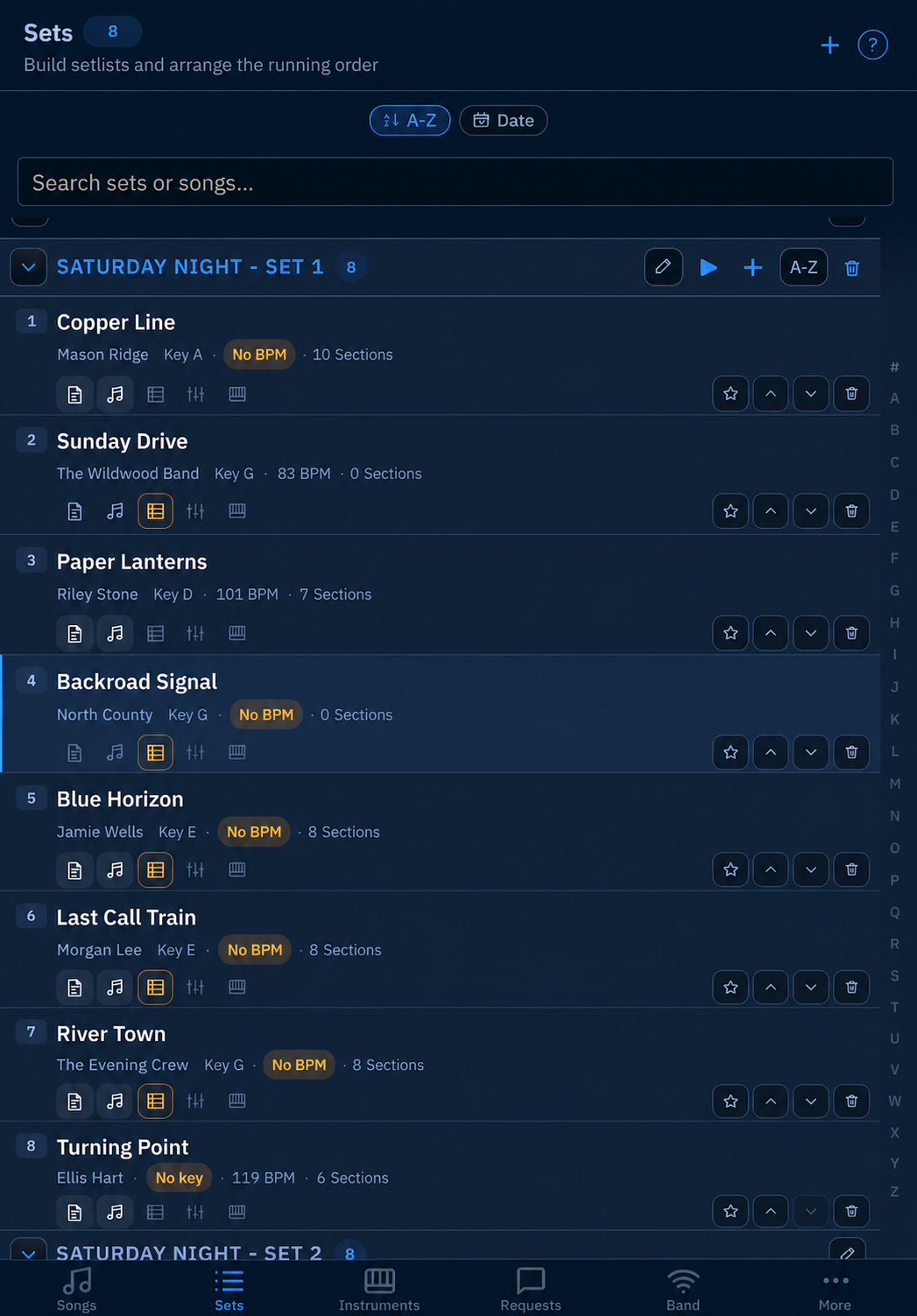
On touch devices, swipe a set or song row to reveal its delete action; Cuevera asks for confirmation before removal.
Backing Tracks
A song can play back either a single audio file or a full multi-track Track mix, added from either the performance view or the lyrics editor via the ⋯ track menu:
- Single WAV/MP3/M4A/FLAC — one backing track for the whole song.
- Multi-Track ZIP — a ZIP archive containing multiple synchronized audio files (click, music, vocals, etc.), each shown as its own mute/solo channel in the Track mixer.
Cuevera can stream Tracks directly out of a ZIP rather than unpacking them, so you can point the Track library at an external drive or SD card where supported (under More → Tracks) without filling up internal storage. Track Defaults also lets you define name-based mute rules — for example, automatically muting any Track named "Click" and unmuting "Lead Vocal" when the song's Tracks load.
Master volume and limiter settings belong to the song. When a Track package is replaced, Cuevera can retain version history so an earlier arrangement can be identified and restored.
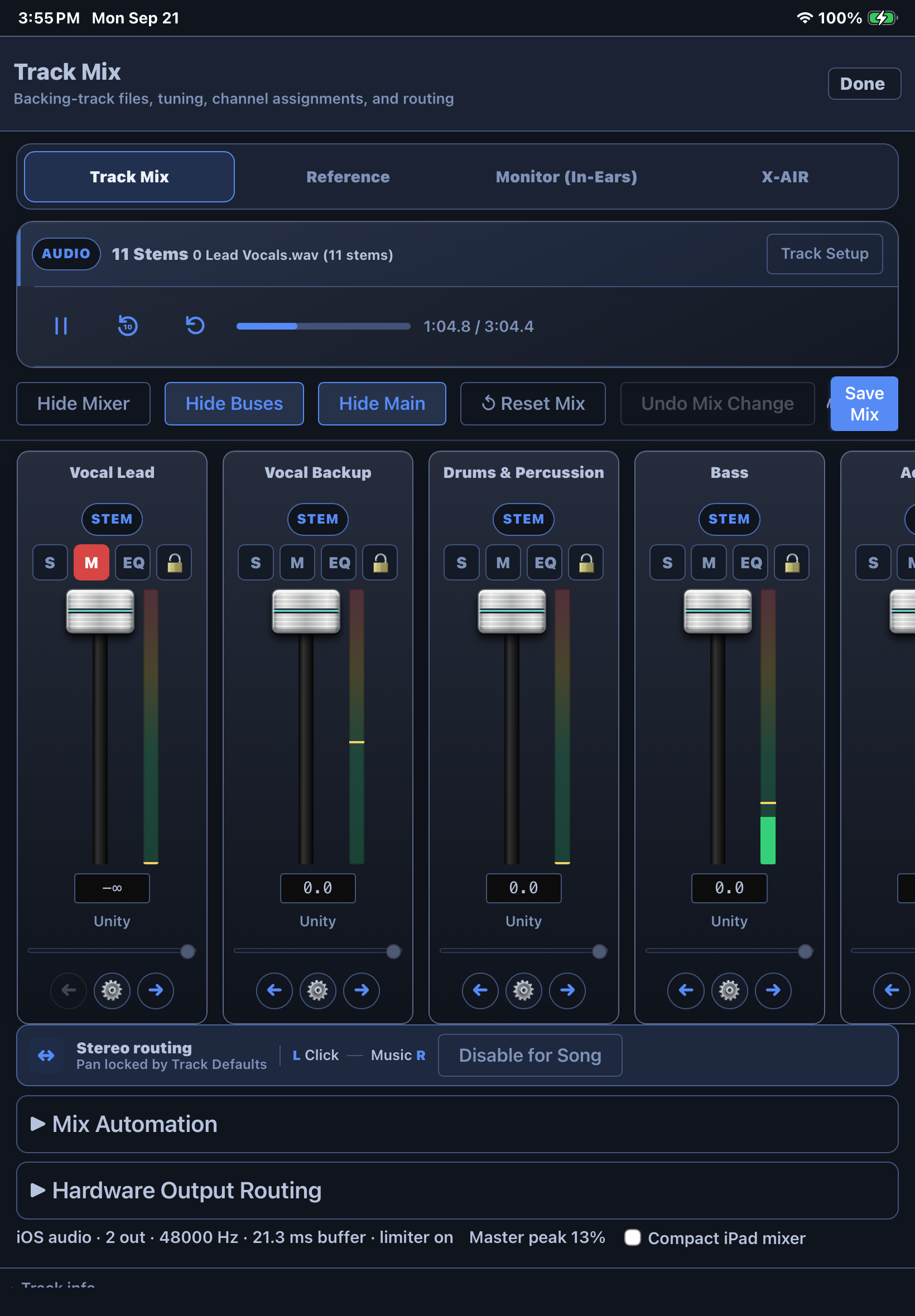
To force a fresh Karaoke Version download, open Edit → Playback and choose Remove backing track. Cuevera clears the active stems and remembered package assignment while preserving lyrics, chords, charts, sections, timing, and cues. It does not delete source files on a USB drive. Choose Get from Karaoke Version to download again.
Download the Cuevera Sample Library
- Open More → Storage & Cache → Choose sample songs.
- Choose one of the 12 original Cuevera songs, or select Download all. Keep Cuevera open while the progress row shows the current song and percentage.
- Open Songs and filter Genre to Cuevera Samples.
- Explore the included lyrics, chords, charts, backing Tracks, Text Cues, Recorded Cues, PDFs, and demonstration automation.
- Return to Sample Library and choose Remove for any sample you no longer want. Your own songs are not affected.
MIDI cues
Under Instruments, add the MIDI gear you play (keyboards, a vocal harmonizer, etc.) along with its MIDI channel, then save individual patches under each instrument — name, bank/slot, program number. You can trigger any saved patch live with the ▶ button to confirm it's wired correctly before a show.
Actual per-song and per-section MIDI firing is configured on the Songs page (Song Start MIDI) and per-section in the section editor — tying a section to one of your saved patches so it fires automatically as your set moves forward. More → MIDI is for device management and testing raw Program Change messages, not for assigning patches to songs.
Foot pedal
More → Pedal configures a Bluetooth foot pedal (AirTurn BT-200 2-button, or BT-500/Duo 500 4-button) for hands-free control during a set. Assign each button to Next Section, Previous Section, Jump to Target, Sync WAV to Section, Play/Pause Track, Voice Command, or leave it disabled. A Live Test panel shows which action fires as you press each button, and the page walks through pairing (the pedal needs to be set to "Mode 3" — keyboard arrow keys — for Cuevera to see its input).
Voice control Windows, iOS & Android
Voice control opens a song from your local library without typing. Use the microphone button in Performance View, or assign Voice Command to an AirTurn button under More → Pedal.
- Press once to start listening, then say the song title.
- Press again to stop and process the command. Recording cancels automatically after about ten seconds if you do not press again.
- Cuevera opens a confident match. If several songs are plausible, use Previous/Next to move through the candidates and the Voice Command button to confirm.
When the song opens, its saved lyrics, chords, charts, backing Tracks, routing, instrument parts, and rehearsed cues are available together. This is especially useful for Nashville-style and request-driven performances where the next song may not come from a fixed setlist.
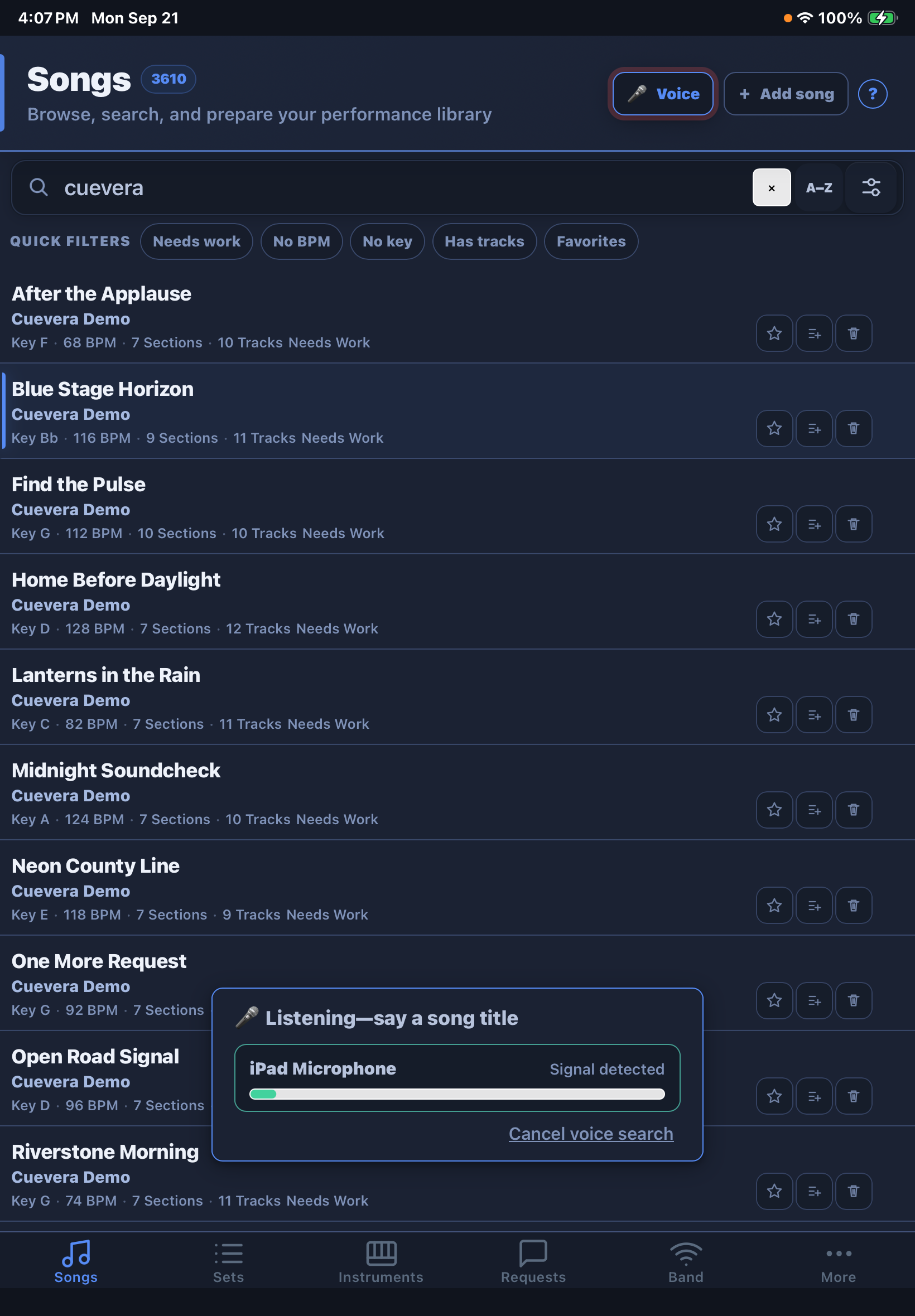
Speech-engine choices appear in Pedal Settings when more than one engine is included in the build. Windows uses an offline engine. iOS requests on-device Apple Speech recognition when supported; Apple may otherwise process speech under its own terms. Android uses the speech service implemented by the installed build and requires microphone permission.
Band Connect
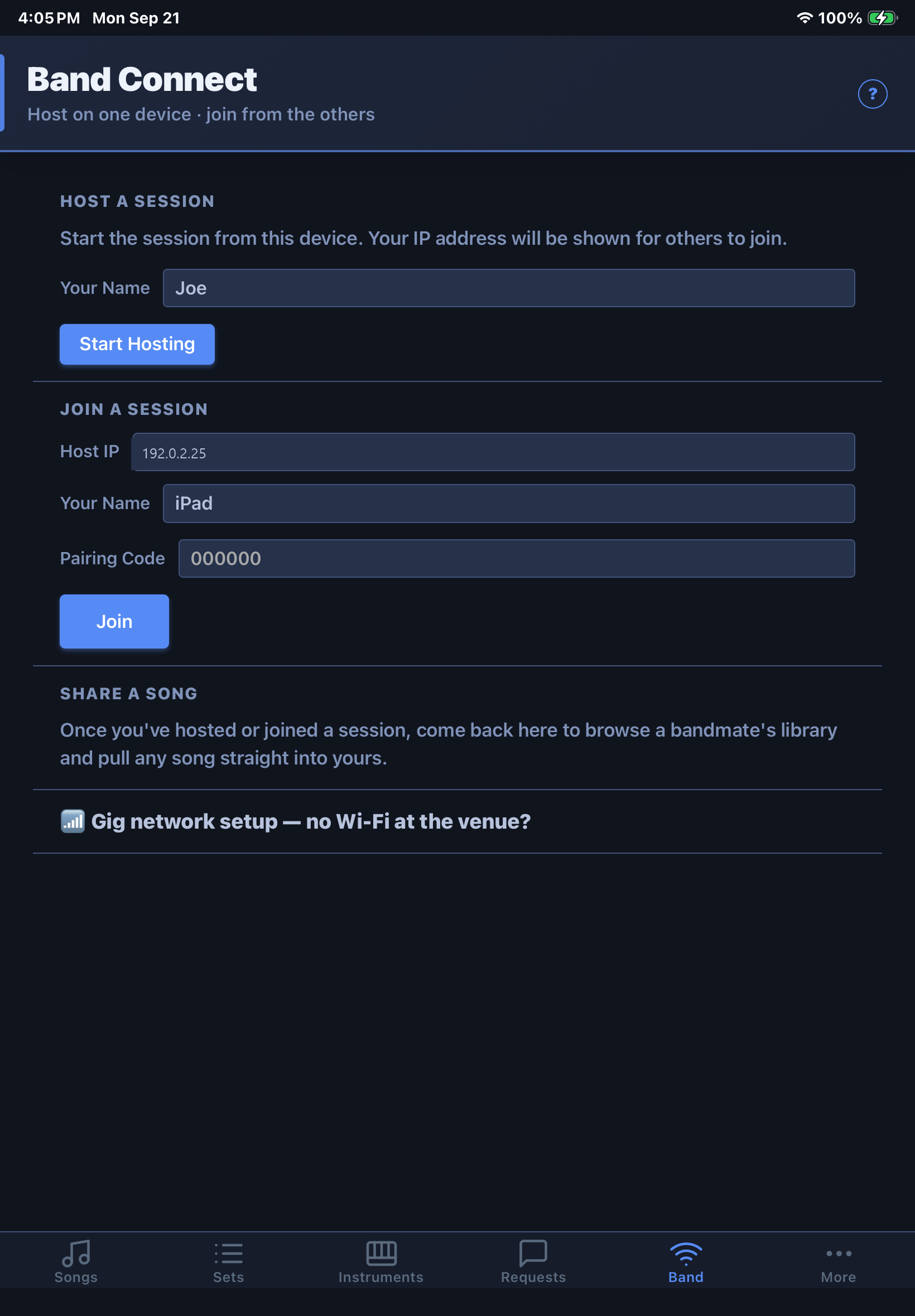
Band Connect syncs your set live with the rest of your band over the same Wi-Fi network — no internet connection, no cloud server involved. One device hosts the session; everyone else joins by entering the host's local IP address and a display name, then follows along with the current song and section in real time.
- Sync My Devices is for devices in the same owner license family. A verified owner may provide a one-way support sync to an authenticated activated or active-trial guest.
- A band member can exchange selected songs only after the host grants Can exchange selected songs for that connection. The grant resets on disconnect.
- Selected-song replacement shows a comparison when the title already exists; it does not grant permission to overwrite or delete the complete library.
- Follower devices receive live song, section, chart, and targeted Text Cue state but do not receive full-library synchronization.
Song requests
The Requests tab keeps a running queue of songs to play next during a gig — search your library and add a pick to the queue, then use Play Next to promote one to "Now Playing."
Importing songs
More → Import is where you bring in existing material:
- OnSong ZIPs — lyrics plus an optional backing track, drag-and-drop or folder import.
- ChordPro files/folders and multi-song files, under "Other formats."
- Ultimate Guitar — search and pull chord charts directly (automated fetch is Windows-only; you can also paste a chart manually on any platform).
- Karaoke-Version.com Tracks — supported workflows on Windows, iPhone/iPad, and Android download owned custom Tracks and import them into the library.
- Instrument patches — Nord Stage 4 HTML exports and VoiceLive CSV exports.
- Library Maintenance — bulk-fill missing Genre (online lookup) or missing Key (detected from each song's audio) across your entire library in one pass.
Title_Artist_Key.zip to
auto-match to the right song on import. Any login credentials for Ultimate Guitar or Karaoke-Version are used
only to connect and are never saved — only the username is remembered.Personal monitor control
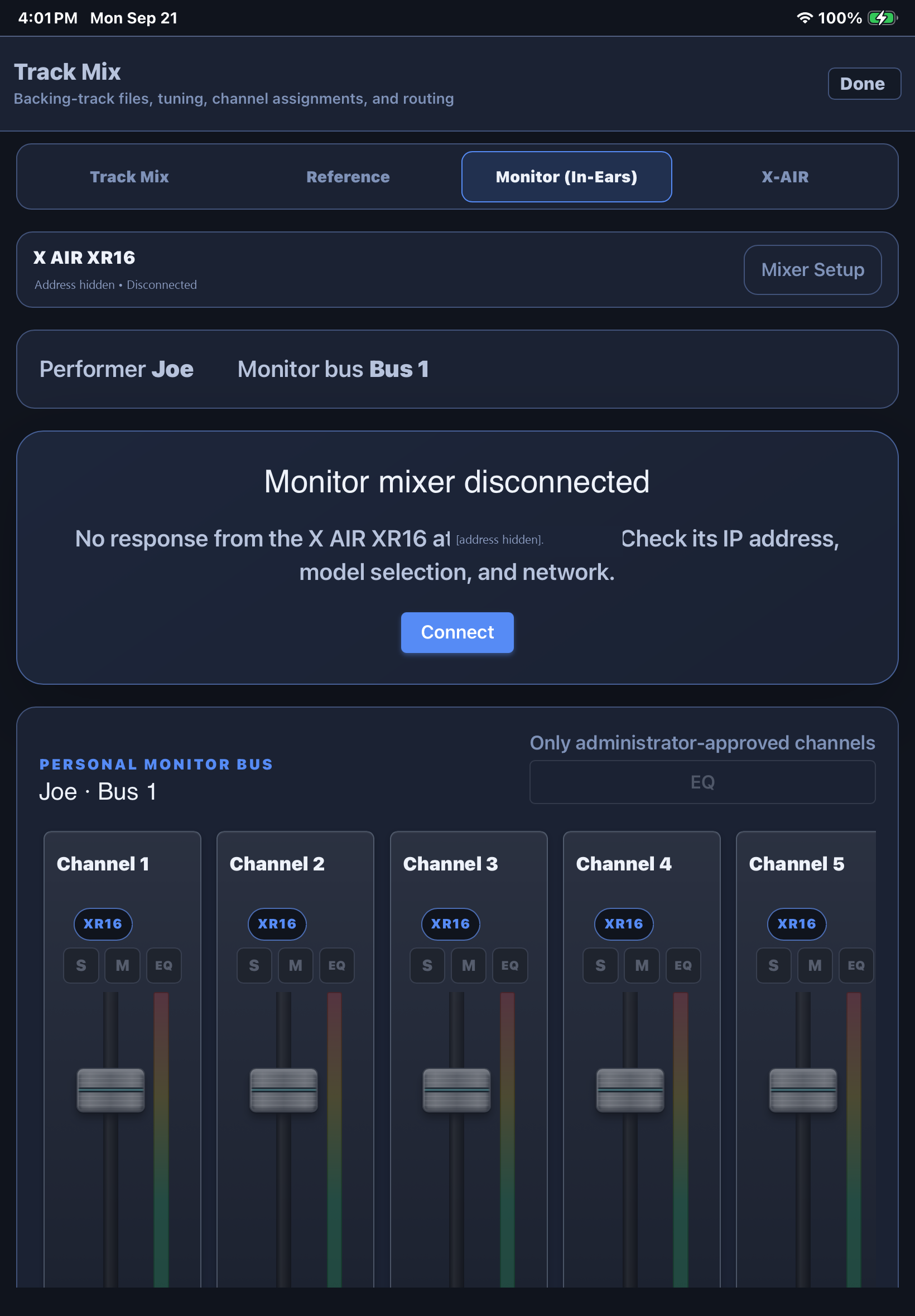
Open More → Monitor Setup to discover or select a supported Behringer X AIR XR12/XR16/XR18/X18, Behringer X32-family, MIDAS MR12/MR18, or MIDAS M32-family console. Cuevera remembers an address for each model and presents that model's available inputs, preamps, and monitor buses. Choose the performer, assigned bus, visible channels, and Me channel. Then use Monitor Mode for bounded level changes, Mute, and More Me while watching confirmed, pending, or stale status.
A 4–8 digit owner PIN protects Main LR, preamp gain, phantom power, FOH mute, and other engineering controls. Monitor control is independent from Cuevera Track playback: losing the mixer connection must not stop the song.
Backup & sync
Backup & Sync covers two different things where supported:
- Database Backup/Restore Windows — copies your entire local library file (songs, sets, patches, settings) to a location you choose, and restores it wholesale (the app needs to restart afterward for a restore to take effect).
- Song Sync Windows — exports a portable package of just your song data to move between devices, or compares directly against a connected Band Connect peer and shows a diff of what's changed so you can choose what to bring over.
On iOS and Android, use Band Connect on a trusted local network to move songs between your own devices.
Display settings
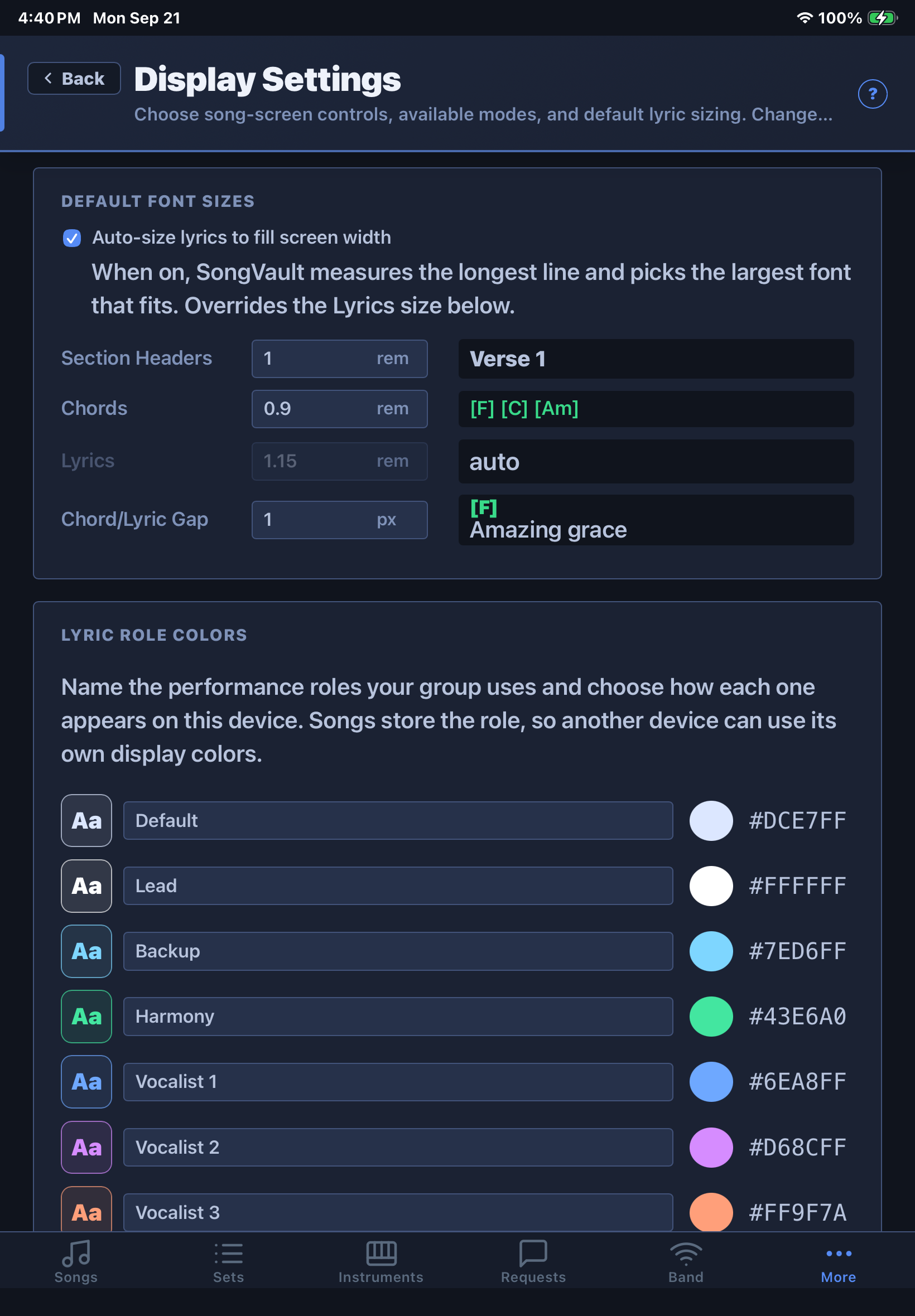
More → Display controls available Song View modes, collapsed-header options, and default sizes — Section Headers, Chords, and Lyrics — plus the vertical gap between a chord and the lyric beneath it, with a live preview as you adjust. An Auto-size lyrics to fill screen width toggle measures each song's longest line and scales lyric text to fit automatically instead of using a fixed size.
License
Try every Cuevera Pro feature free for 60 days—no account or payment method required. Import your library, rehearse with your setup, and use Cuevera at a real performance. After the trial, choose a license; your local library remains on your device.
More → License shows your current status — licensed, trial days remaining, or expired — and is where you activate a purchased license key. Activation checks the key locally on your device; Cuevera works fully offline both before and after activation.
- Standard — $49.99 one-time: library editing, setlists, performance flow, pedals, audience requests, and hosting or joining Band Connect.
- Pro — $79.99 introductory / $99.99 regular: everything in Standard plus MIDI, backing Tracks and multi-Track mixing, library sync, delegated Band Connect control, and advanced external displays.
- Follower — $14.99 one-time: one follower-only device that can join and follow a Band Connect session, but cannot host or edit the library.
Standard and Pro cover one customer on up to three personal devices. Install Cuevera on each device, copy its Device ID from the License page, and include up to three IDs in the license request. The same page can prepare requests to add or transfer a device later. The first year of updates and support is included; optional renewal is $19.99 per year, and the installed version continues working without renewal.